
Appearance
Install & first login
Install HRsency Lens from Google Play, sign in to your company, and unlock the camera screen.
Requirements
- Android phone or tablet (64-bit)
- Google Play version 1.0.3 or later
- Internet for the first sign-in and license check
- Camera permission
- Client code, username, and password from your HRsency account
Play Store package: com.hrsency.lens
First-run flow
mermaid
flowchart TD
  A[Install from Play Store] --> B[Allow camera]
  B --> C[Create account]
  C --> D{Already have an account?}
  D -->|Login| E[Sign in]
  D -->|Start free trial| F{License valid?}
  E --> F
  F -->|No| G[Enter license key]
  F -->|Yes| H[Set 4-digit MPIN]
  G --> H
H --> I[Attendance camera]- Install HRsency Lens from Google Play.
- Open the app and allow the camera when Android asks.
- The first screen is Create Account. Fill in the company details and start the Attendance free trial. Steps are in Create account.
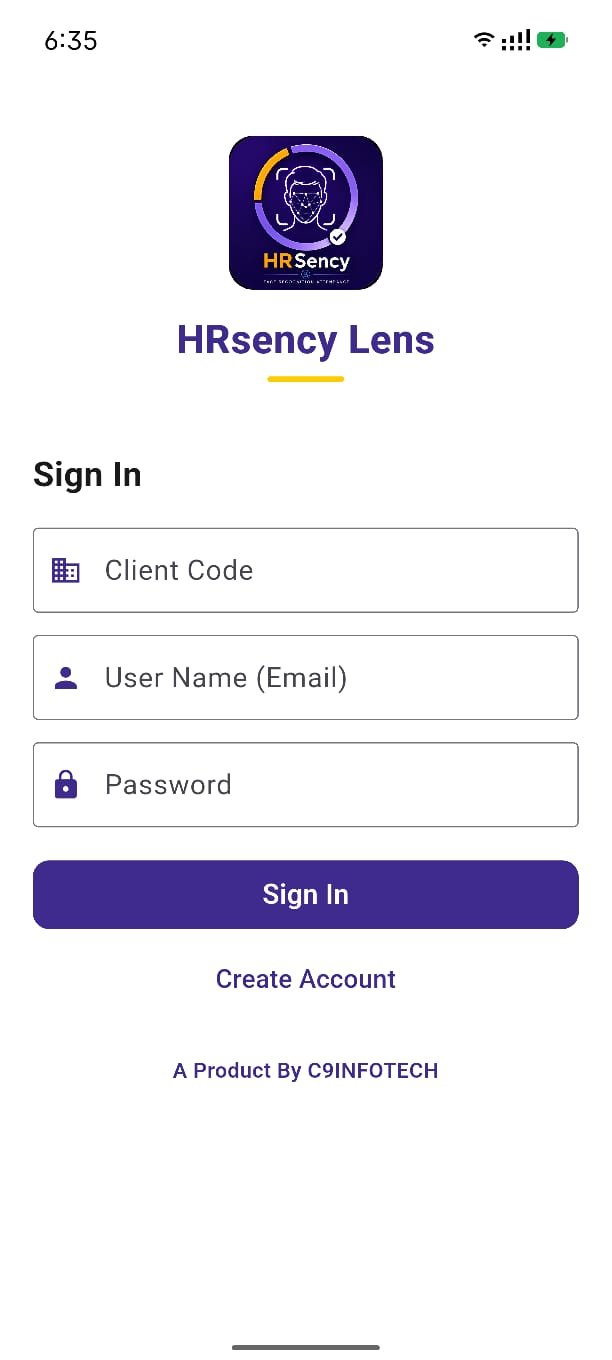
- If this phone should use an existing company, tap Already have an account? Login and enter:
- Client Code — company code (
letters, numbers, and hyphens only) - User Name (Email)
- Password
- Client Code — company code (
- Tap Sign In.
- If the license screen appears, enter the license key. See License.
- Set a 4-digit MPIN. You will use it to leave the camera and open the menu.
Create an account
The first open of the app is Create Account. If you already have a login, use Already have an account? Login on that form. Full steps, fields, and the Attendance free trial versus Payroll are in Create account.
First-hour checklist
- Allow the camera.
- Sign in and set the MPIN.
- Confirm the license is active.
- Add employees and capture face photos — Employees.
- Mark one test punch on the camera — Face attendance.
- If you use a second screen, turn on the LAN server — Kiosk webpage.
- Take a backup — Backup.
Open the menu
The camera stays on for punching. To open employees or settings:
- Tap the menu control on the camera screen.
- Enter the MPIN.
Forgot the MPIN: tap Reset MPIN, enter the account password used at sign-in, then set a new 4-digit MPIN. If the password is wrong, contact info@c9infotech.com.
Next: Face attendance · Employees.