
Appearance
Employees & face photos
Face attendance only works for people who are enrolled with a face photo.
Add an employee
- Enter the MPIN and open the employee area.
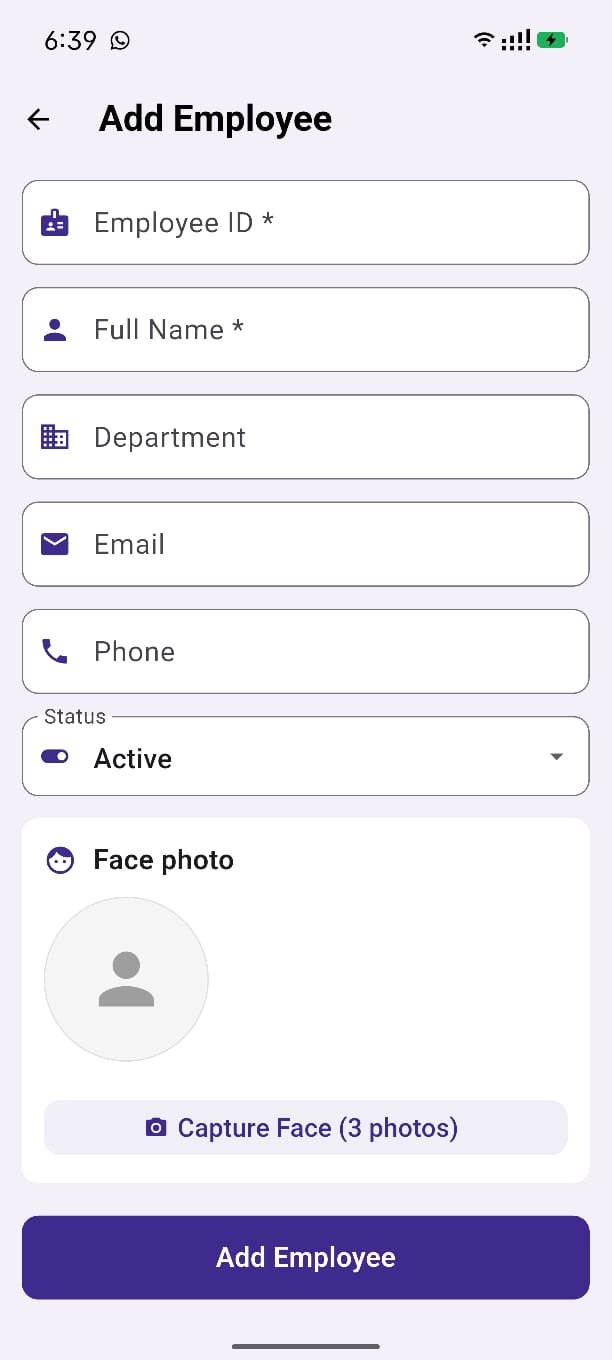
- Add an employee.
- Fill the ID, name, and department.
- Capture the face photos the screen asks for. Follow the on-screen count (
Photo 1 of …). - Save.
Use a clear, front-facing photo. Avoid strong backlight.
Edit or delete
- Open the employee and update details or retake the face photo.
- Delete removes that person from this device. Confirm before you delete.
Kiosk list
When the LAN display is on, the Employee List tab shows the same people, including last punch.
Next: Face attendance · Shifts.